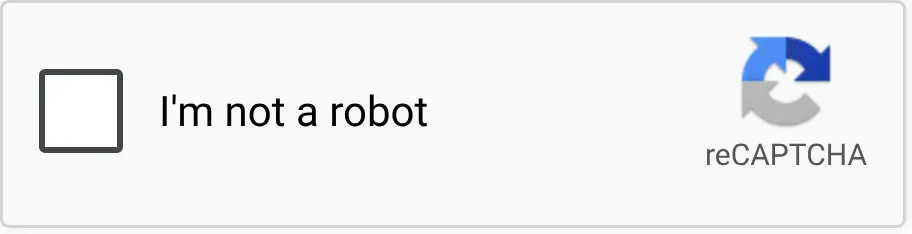
reCAPTCHA is Google’s bot check for web forms, and it’s four products under one name. The v2 checkbox is the one everyone knows:
Invisible v2 only wakes up when you submit a form. v3 never shows anything and scores the visit in the background. Enterprise is any of these, sold through Google Cloud. A script gets stuck on each one for a different reason, but the approach is the same for all four. Give Google fewer reasons to show a challenge, then solve the challenges it shows anyway.
Key takeaways
- Google asks only when unsure. Its 4 Enterprise reason codes point to the IP, the browser and the input.
- A solved grid or a bought token doesn’t fix the cause. Tokens live 2 minutes and verify once.
- Surfsky passed 10 of 10 demo solves: about 2 seconds on a first click, 10 to 15 with images. Paid only when images showed.
- v3 has no challenge, only a score. Google’s v3 demo gave plain headless Playwright 0.9, so test on the real site.
If you want the code first, jump to the v2 checkbox example.
Test Your Browser Stack for $5
Run your Playwright code through a real browser and see which requests pass.
- No card required
- API key in 30 seconds
- Change one line of code
Step 1: Find out which reCAPTCHA you’re facing
Invisible v2 and v3 both show only a small badge, so check what the page loads instead of the widget:
| Version | What you see | What the page loads | How to get through |
|---|---|---|---|
| v2 checkbox | “I’m not a robot”, sometimes followed by images | api.js and an anchor iframe with size=normal |
Send the solve command once the page loads |
| Invisible v2 | A badge in the corner, images only when Google is unsure | api.js, an anchor iframe with size=invisible and a bframe for the challenge |
Start automatic mode, then submit the form |
| v3 | A badge in the corner, never a challenge | api.js?render= followed by the site key, and no bframe |
Nothing to solve; the session gets a score |
| Enterprise | Any of the above | enterprise.js and frames under /recaptcha/enterprise/ |
Same as the version it looks like |
To check a page, paste this into the DevTools console:
[...document.querySelectorAll('script[src*="recaptcha"], iframe[src*="recaptcha"]')].map(e => e.src)Enterprise is now sold as part of Google Cloud Fraud Defense. On the page it defines grecaptcha.enterprise but otherwise looks the same. The differences are on the site’s side. Paid tiers get 11 score levels instead of 4, plus reason codes, per Google’s tier comparison, and a policy-based challenge key shows a challenge to visitors whose score falls under a threshold.
Step 2: Give Google fewer reasons to ask
When Google launched the checkbox in 2014, its launch announcement said the backend considers “a user’s entire engagement with the CAPTCHA”, before, during and after the click. Images are the fallback. When the engine “can’t confidently predict whether a user is a human or an abusive agent, it will prompt a CAPTCHA to elicit more cues.”
So solving a grid doesn’t change why Google asked, and the next form asks again. Fixing the session cuts the number of challenges, and every challenge you avoid is a solve you don’t wait for or pay for.
Google doesn’t publish its signals. The closest thing to a list is the set of reason codes that Enterprise returns with a score:
AUTOMATION: “The interaction matches the behavior of an automated agent.”UNEXPECTED_ENVIRONMENT: “The event originated from an illegitimate environment.”TOO_MUCH_TRAFFIC: “Traffic volume from the event source is higher than normal.”UNEXPECTED_USAGE_PATTERNS: “The interaction with your site was significantly different from expected patterns.”
They come down to three things you control.
IP address
Google’s reCAPTCHA FAQ gives network reasons for the “Your computer or network may be sending automated queries” message, which replaces the challenge entirely. You “may be on a shared network that is being used abusively”, or your provider “may have recently assigned you a suspicious IP address”. Datacenter and VPN addresses carry the history of everyone who used them before you, and a lot of requests from one address is what TOO_MUCH_TRAFFIC describes.
Use residential or mobile IPs in the site’s country, keep one IP for the whole session, and spread the load over many IPs instead of sending everything through one.
Surfsky’s premium pool gives each session a residential or mobile IP, which you can pin to a country, city or ASN. Time zone and language follow the exit IP, so the browser doesn’t claim to be in Berlin while its IP is in Ohio.
Browser
reCAPTCHA’s script runs inside Google’s iframe and reads the browser it lands in. Automation leaves marks there, like the navigator.webdriver flag, headless defaults, or fingerprint values that don’t describe one real device: a Windows User-Agent with Mac fonts, or a GPU no laptop ships with. reCAPTCHA also sets a _GRECAPTCHA cookie “for the purpose of providing its risk analysis”, so a browser that starts empty on every run looks like a first-time visitor every time.
Use a browser without automation marks, with a fingerprint from one real device, and keep its cookies between runs.
Each Surfsky session gets a browser fingerprint recorded on a real device and applied inside the engine, without an injected script, so reCAPTCHA reads the same values in its iframe as the page does. A persistent profile keeps cookies between runs, along with the fingerprint and proxy they were set with.
Behavior
A cursor that appears on the checkbox out of nowhere, or a form filled and sent a second after the page loads, is what AUTOMATION and UNEXPECTED_USAGE_PATTERNS are about. On v3, Google tells site owners to run reCAPTCHA “in the background of pages for analytics” (v3 docs) as well as on forms, so it can see the whole visit, not only the submit.
Move the cursor and type like a person, and don’t submit a form the moment it loads. On v3 sites, give the page a normal visit: let it load, scroll, fill in the fields, then submit.
With Surfsky’s human emulation, the cursor travels to the checkbox on a curved path and slows down before the click, and typing has uneven pauses between keys. The events come from the browser’s input pipeline, not from page JavaScript, so they arrive as trusted.
Step 3: Solve the challenges that still show
When Google asks anyway, Surfsky’s solve command takes over. It ticks the checkbox with a human cursor path. If an image grid opens, it reads the instruction, recognizes each image and clicks the matching tiles. On grids where clicked tiles refill with new images, it keeps clicking until none are left, then presses Verify. Google often follows one grid with another, and the solver keeps answering until the box is ticked. It also finds widgets that a site puts inside its own iframes.
Nothing is injected into the page. Google’s own widget fills in g-recaptcha-response and fires the site’s callback, so from the site’s side a visitor ticked a box. Token-solving services work the other way around. They solve the challenge in their own browser and send you a token to paste in. That can get one form through, but the token is valid for two minutes and can be verified once (verification docs), and your own browser still hasn’t passed anything, so the next form asks again.
You’re only charged for a solve when Google showed images, since that’s when recognition runs. A checkbox that passes on the first click has no solve charge. Solves are metered like other usage. Each result carries its cost in usage.cost_usd, and an image solve is charged whatever its outcome, failed included.
reCAPTCHA v2 checkbox
You need an API token and base URL from the Surfsky dashboard and the Python SDK, which runs on Python 3.12 or newer:
export SURFSKY_API_TOKEN="your-token"
export SURFSKY_API_BASE_URL="your-base-url"
pip install surfsky
import asyncio
from surfsky import AntiCaptcha, AsyncSurfsky
async def main():
async with AsyncSurfsky() as client:
async with client.browser(
anti_captcha=AntiCaptcha(enabled=True), command_timeout=200
) as browser:
await browser.goto("https://www.google.com/recaptcha/api2/demo")
result = await browser.send(
"Captcha.solve", {"type": "recaptcha", "timeout": 180000}
)
print(result["status"])
asyncio.run(main())The browser opens Google’s demo page and the solve command clicks the checkbox. If Google asks for images, it answers them too, and the script prints success once the box is ticked.
Here’s that run on the demo page. Google asked for buses, the solver picked three tiles and pressed Verify, and the checkbox turned green:
We ran these tests on Google’s demo pages in October 2026. On the checkbox page, the box sometimes passes on the first click in about 2 seconds, and sometimes Google asks for images first, which takes 10 to 15 seconds. All ten of our solves passed. When we submitted the demo form after a solve, Google’s “Verification Success” page came back, so Google’s server accepted the answer as well.
Invisible reCAPTCHA
Invisible v2 has no checkbox. The site calls it when you submit the form, and Google opens the image grid only if it’s unsure about you. Start automatic mode before you submit, and the solver answers the grid if one opens:
await browser.send("Captcha.autoSolve", {"type": "recaptcha"})
await browser.goto("https://www.google.com/recaptcha/api2/demo?invisible=true")
await browser.click("#recaptcha-demo-submit")
browser.click moves the cursor to the button the way a person would. In our test, Google asked for images after the submit, and the demo page said “Verification Success” once the solver answered them.
reCAPTCHA v3
There’s nothing to solve on v3. The site gets a score for the visit and decides what to do with it, so everything depends on how the session looks to Google, which is what Step 2 is about. Surfsky doesn’t promise a score. It gives you a browser that looks like a normal visitor, and the site’s response tells you whether that was enough.
Test on the site you care about, not on a demo page. Google’s own v3 demo gave plain headless Playwright a score of 0.9 in three runs out of three. The page itself warns that its score “is not a reflection on your Google account or type of traffic.”
reCAPTCHA Enterprise
Enterprise draws the same checkbox and image grids, so you send the same command as for v2 or use automatic mode as for invisible. On an Enterprise demo page we tried, the checkbox passed on the first click. The site’s backend also reads the score, so a ticked box doesn’t guarantee the login went through. Look at the page you land on.
From Playwright or Puppeteer
An existing Playwright script needs two changes: start the browser through Surfsky’s API instead of launching one locally, and send the solve command through a CDP session:
pip install patchright httpximport asyncio
import os
import httpx
from patchright.async_api import async_playwright
API = os.environ["SURFSKY_API_BASE_URL"]
HEADERS = {"X-Cloud-Api-Token": os.environ["SURFSKY_API_TOKEN"]}
async def main():
async with httpx.AsyncClient(timeout=120) as http:
response = await http.post(
f"{API}/profiles/one_time",
headers=HEADERS,
json={"anti_captcha": {"enabled": True}},
)
session = response.json()
async with async_playwright() as pw:
browser = await pw.chromium.connect_over_cdp(session["ws_url"])
page = browser.contexts[0].pages[0]
cdp = await page.context.new_cdp_session(page)
await page.goto("https://www.google.com/recaptcha/api2/demo")
result = await cdp.send("Captcha.solve", {"type": "recaptcha", "timeout": 180000})
print(result["status"])
browser_cdp = await browser.new_browser_cdp_session()
await browser_cdp.send("Browser.close")
asyncio.run(main())The output is the same success. There’s no patchright install chromium step, since the browser lives in Surfsky’s cloud. For plain Playwright, import from playwright.async_api instead. For Puppeteer, open a CDP session with page.createCDPSession() and send the same Captcha.solve.
When you don’t know at which step the widget will turn up, use automatic mode: list recaptcha in auto_captcha_types, send Captcha.autoSolve before navigating, and wait for the Captcha.solveCompleted event. Surfsky’s reCAPTCHA docs show the full setup for the Python and TypeScript SDKs and for Playwright.
Troubleshooting
The solve command returns success, failed, timeout or not_detected, or a CDP error when there’s no widget to solve.
| What you get | What it means | What to do |
|---|---|---|
success, but the site still blocks you |
The widget accepted the answer, but the site’s backend also checks the score | Check the page you got back, then work on the session (Step 2) |
failed, with “Your computer or network may be sending automated queries” in the widget |
Google stopped serving challenges to that IP | Start a new session on another IP |
failed or timeout after grid after grid |
The session looks risky, so Google keeps asking | Go through Step 2 before you retry |
not_detected |
The checkbox was already ticked | Nothing, carry on |
| The error “No captcha detected on the page” | There was no widget when you called: it hadn’t loaded yet, or invisible reCAPTCHA wasn’t triggered | Wait for the widget, or start automatic mode and submit the form |
Playwright and Puppeteer add their own scripts and bindings to every page, one more thing an anti-bot script can find. If grids keep coming in a Playwright script, run the same flow through the SDK and compare. We explain why we wrote our own in Tired of Patching Playwright. And don’t run a second solver on the same widget, because two attempts at once can cancel each other out.
Getting started with Surfsky
Create an account in the dashboard and run the v2 checkbox example above as it is. Once it prints success on Google’s demo, swap in the URL of the form you’re automating. Coding agents can set Surfsky up from our skill file. For Cloudflare’s version of the checkbox, see how to bypass Cloudflare Turnstile.